
Page 2 | 27+ Planner designs - Customizable templates
Page 2 | Check collection of 27+ Planner design templates. Pick a editable template for your Planner design. Customize it and then download it as PDF, JPEG, PNG or WEBP.
Editable & Printable Planner Document Templates
Explore a collection of professionally created Planner design templates for hourly, monthly, and weekly planning. Select a template that fits your purpose, then customize its text, layout, and other design elements to match your requirements. Whether you need a structured hourly schedule, a monthly overview, or a weekly planning layout, these customizable Planner templates provide a practical starting point. When your design is ready, download the finished Planner as a PDF, PNG, JPEG, or WEBP file.
27+ Editable Planner design templates - Page 2 / 2
More Design Template Categories
- Banner design templates
- Business Card design templates
- Certificate design templates
- Flyer design templates
- Greeting Card design templates
- Invitation Card design templates
- Invoice design templates
- Menu design templates
- Planner design templates
- Poster design templates
Editable Planner Document Templates
Life moves fast, and somewhere between work deadlines, family commitments, and the errands that never seem to end. It's easy to lose track of what actually matters. That's where a planner comes in. Whether you're a student trying to stay on top of assignments, a working professional juggling meetings, or someone who just wants a clearer picture of their day, a planner gives you a simple way to organize your time and your thoughts.
What Is a Planner?
A planner is a structured document used to organize tasks, schedules, goals, and activities over a specific period of time — a day, a week, a month, or even a full year. It typically includes sections for dates, to-do lists, notes, and sometimes trackers for habits, budgets, or meals, depending on what kind of planner it is.
Planners can be physical (printed on paper and filled in by hand) or digital (filled in on a tablet, phone, or computer). Either way, the purpose stays the same: to give you a clear, visual way to see what needs to get done and when, so nothing important slips through the cracks.
What Are the Different Types of Planners?
Not every planner works for every person. Some people need a bird's-eye view of their entire month, while others need to break their day down hour by hour. Here's a look at the most common types of planners and what each one is best suited for.
Monthly Planner
A monthly planner lays out an entire month on a single spread, usually in a calendar grid format. It's ideal for tracking deadlines, appointments, birthdays, and recurring events at a glance. If you like seeing the bigger picture before diving into daily details, this is a good starting point.
Weekly Planner
A weekly planner breaks the month down into smaller, more manageable chunks. Each day of the week gets its own section, making it easier to plan out tasks, meetings, and personal commitments without feeling overwhelmed by the whole month at once.
Daily Planner
A daily planner focuses on just one day at a time. It usually includes space for a to-do list, priorities, notes, and sometimes a mood or gratitude tracker. This type works well for people who prefer a detailed, day-by-day approach to getting things done.
Hourly Planner
An hourly planner takes the daily planner a step further by breaking the day into individual time slots — often hour by hour, or in 30-minute increments. It's especially useful for people with packed schedules, like professionals juggling back-to-back meetings or freelancers billing by the hour.
Study Planner
A study planner is designed specifically for students. It helps organize class schedules, assignment due dates, exam timelines, and study sessions. Some study planners also include space for tracking grades or noting which subjects need extra attention.
Project Planner
A project planner is built to manage the moving parts of a specific project — deadlines, milestones, task ownership, and progress tracking. It's commonly used by teams and freelancers who need to keep a project on schedule from start to finish.
Meal Planner
A meal planner helps you map out breakfast, lunch, dinner, and snacks for the week (or month) ahead. Many people pair this with a grocery list section, which makes shopping trips faster and helps cut down on food waste and last-minute takeout orders.
Fitness Planner
A fitness planner is used to track workouts, sets, reps, rest days, and overall progress toward a fitness goal. It's a helpful tool for anyone following a structured training plan or trying to stay consistent with exercise.
Goal Planner
A goal planner is built around setting and tracking short-term and long-term goals. It often includes space to break bigger goals into smaller action steps, along with checkpoints to measure progress over weeks or months.
Budget Planner
A budget planner helps you track income, expenses, savings, and financial goals. It's a practical tool for anyone trying to get a clearer handle on their spending habits or working toward a specific savings target.
To-Do List Planner
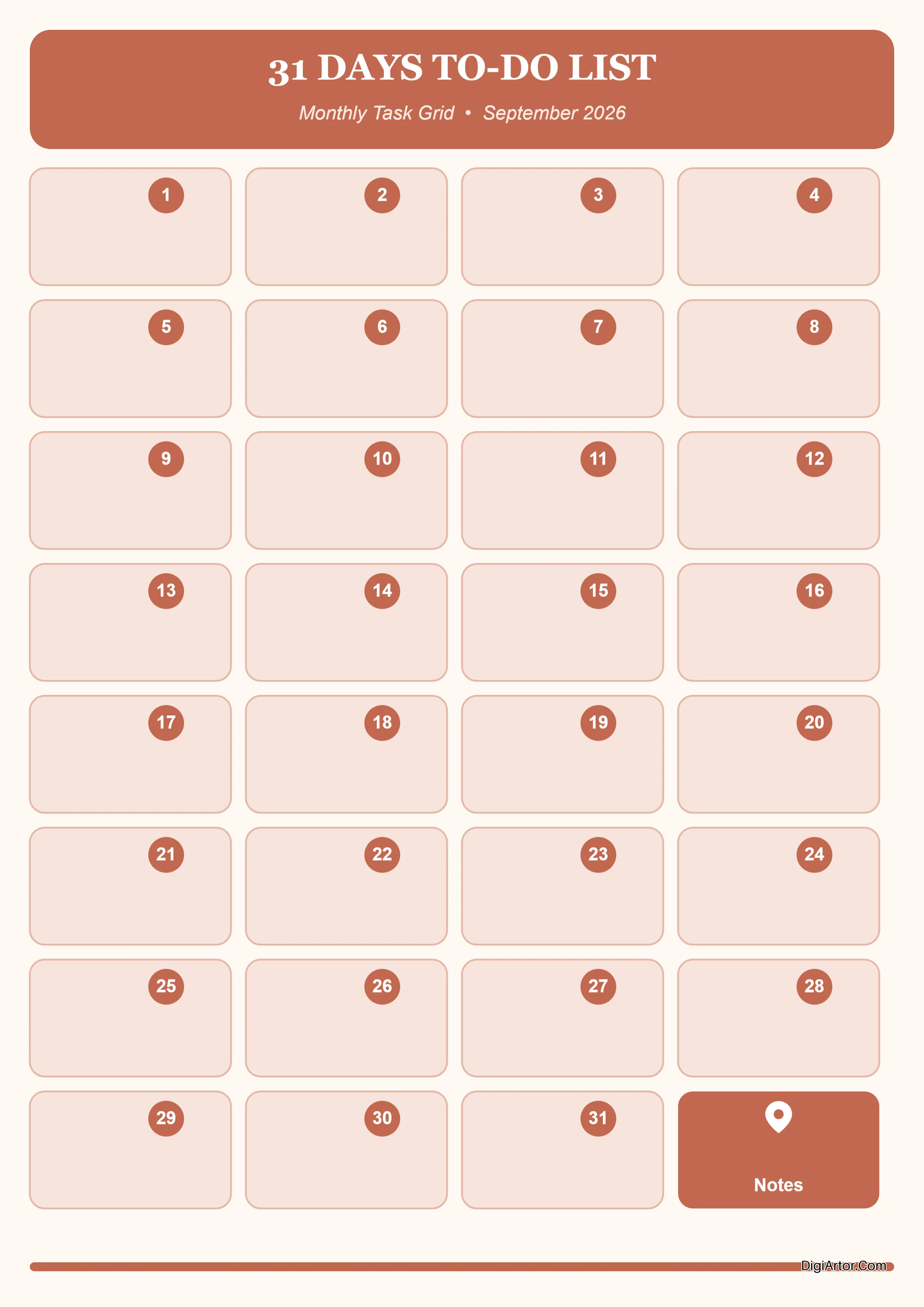
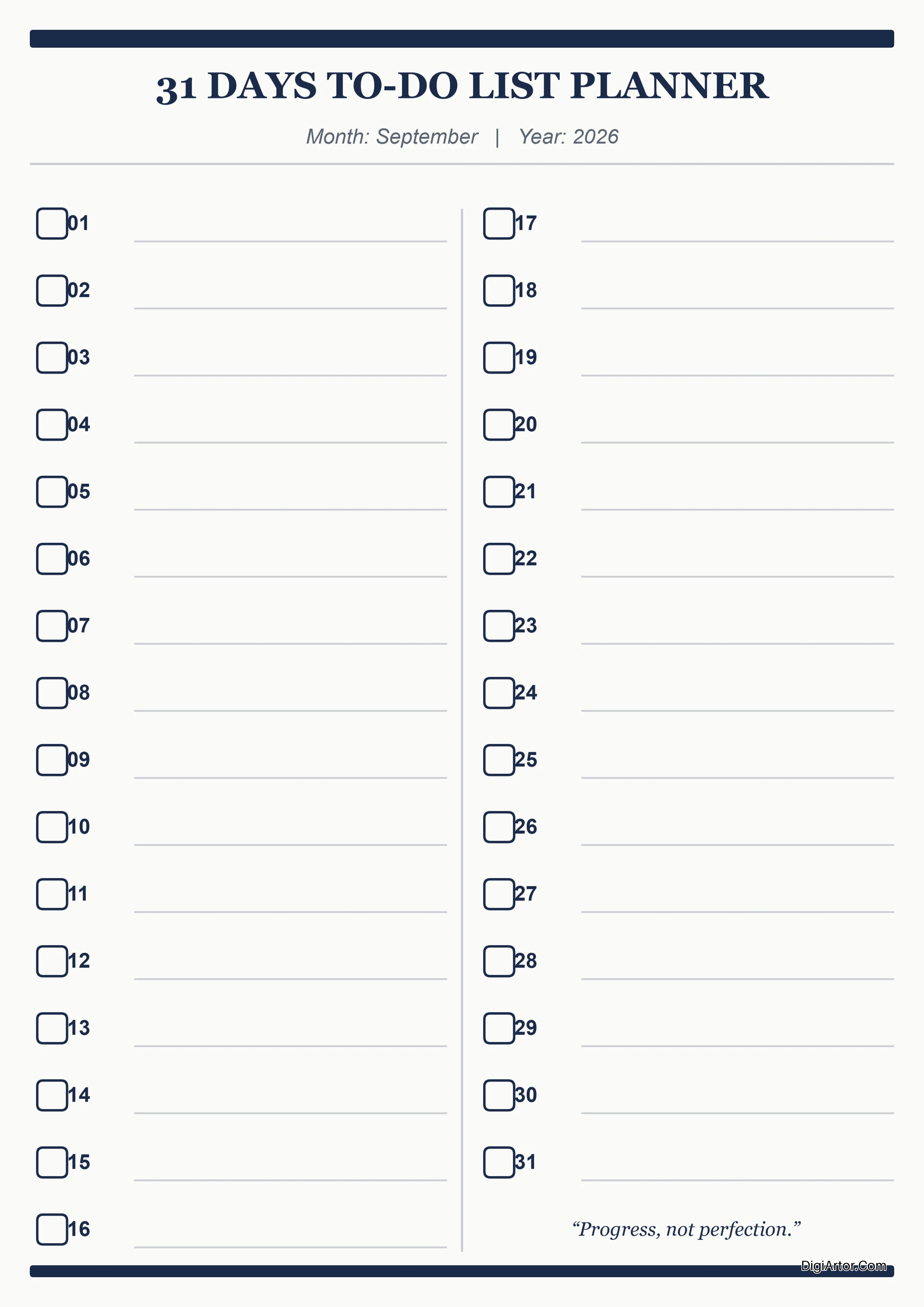
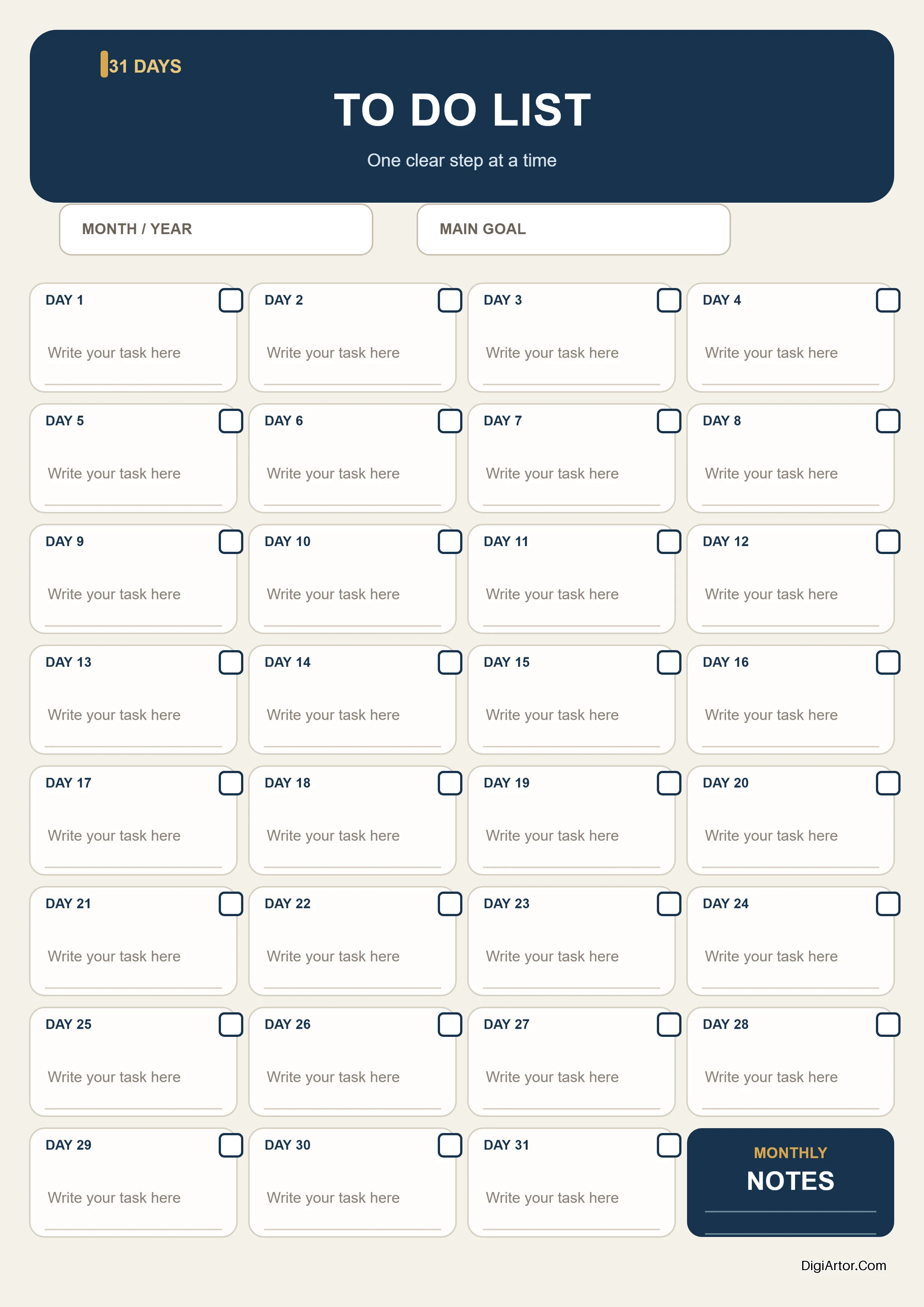
A to-do list planner is a simple, task-focused layout. There's no complicated structure here — just a clean space to list out what needs to get done, often with checkboxes to mark tasks complete as you go.
Habit Tracker Planner
A habit tracker planner is designed to help you build (or break) habits over time. It usually includes a grid or calendar layout where you can mark off each day you've stuck to a habit, which makes it easier to visualize consistency and stay motivated.
Who Should Use a Planner?
Honestly, almost anyone can benefit from using a planner, but a few groups tend to find them especially useful:
- Students who need to track assignments, exams, and study schedules.
- Working professionals managing meetings, deadlines, and projects.
- Entrepreneurs and freelancers juggling client work, invoices, and their own business goals.
- Parents and homemakers coordinating family schedules, meals, and household tasks.
- Content creators and marketers planning content calendars and campaign timelines.
- Fitness enthusiasts tracking workouts and progress.
- Anyone working toward a personal goal — whether that's saving money, building a habit, or simply getting more organized.
If you've ever felt like your day got away from you, or you've forgotten a deadline you swore you'd remember, a planner is worth trying.
What Are the Benefits of Using a Planner?
Using a planner regularly can make a noticeable difference in how organized and in control you feel. Some of the biggest benefits include:
- Better time management — seeing your day or week laid out helps you allocate time more realistically.
- Reduced stress — writing tasks down gets them out of your head, which can ease mental clutter.
- Improved productivity — a clear list of priorities makes it easier to focus on what actually matters.
- Fewer missed deadlines — dates and due dates are right in front of you instead of buried in your memory.
- Better goal tracking — breaking big goals into smaller steps makes progress easier to measure.
- A stronger sense of accomplishment — checking off completed tasks is a small but real motivator.
Printable Planner vs. Digital Planner
Both printable and digital planners get the job done, but they suit different habits and preferences.
A printable planner is a physical document you print out and fill in by hand. Many people find handwriting helps with memory and focus, and there's something satisfying about physically checking off a completed task. Printable planners are also flexible — you can print a fresh page whenever you need one, stick them on a wall, or keep them in a binder.
A digital planner is filled out on a device like a tablet, phone, or laptop, often using a stylus or typing directly into fields. It's a good fit for people who want to carry their planner everywhere without extra paper, or who like being able to duplicate, edit, or rearrange pages easily.
The good news is that with DigiArtor, you're not locked into one or the other. You can design your planner digitally and then choose to print it, or keep it as a digital file to fill in on-screen — whatever works best for how you like to plan.
How to Create a Planner Using DigiArtor Templates
Creating a planner on DigiArtor doesn't require any design experience. The whole process happens right in your browser, and you can go from a blank idea to a finished, downloadable planner in just a few steps.
Choose a Planner Template
Head to the Planner section on DigiArtor (this page) and browse through the available categories — monthly, weekly, daily, hourly, study, project, and more. Pick a template that matches the type of planner you're looking to create.
Open the Template in the Editor
Once you've found a design you like, open it in DigiArtor's browser-based editor. There's nothing to download or install — the editor loads directly in your browser and you can start working on your planner right away.
Customize the Planner
This is where you make the template your own. Update the text, adjust the layout, change colors, swap fonts, and add or remove sections until the planner reflects exactly what you need it to.
Review Your Design
Before finalizing anything, take a moment to review your planner. Check that all the dates, labels, and sections make sense, and make sure the overall layout still looks clean and easy to read.
Download the Finished Planner
Once you're happy with the design, download your planner in the format that works best for you — PDF, PNG, JPEG, or WEBP — and it's ready to print or use digitally.
How to Customize a Planner in DigiArtor?
DigiArtor's editor gives you full control over every part of your planner template. Here's what you can adjust:
Edit Text
Click on any text field to change labels, headings, or notes — update a "Weekly Goals" section to say "Weekly Priorities," or personalize a header with your name.
Customize Fonts
Choose from a range of fonts to match the tone you're going for, whether that's clean and minimal or playful and decorative.
Change Colors
Adjust the color scheme of your planner to fit your personal style, brand colors, or simply a palette you find calming or motivating.
Modify Sections
Rearrange or resize sections of the planner — maybe you want a bigger notes area and a smaller habit tracker, or vice versa.
Add or Remove Elements
Add icons, dividers, or decorative elements, or remove ones you don't need to keep the design as simple or detailed as you'd like.
Personalize the Layout
Move sections around entirely to build a layout that actually matches how you think and plan, rather than sticking to the original template structure.
Why Use DigiArtor to Create a Custom Planner?
There are plenty of reasons people choose DigiArtor when they want a planner that actually fits their life instead of a generic, one-size-fits-all layout:
- No software to install — everything works directly in your browser.
- Thousands of templates — a wide variety of planner styles to start from, so you're rarely starting from scratch.
- Full customization — text, fonts, colors, layout, and elements are all editable.
- Multiple download formats — export as PDF, PNG, JPEG, or WEBP depending on how you plan to use it.
- Free to use — design and download your planner without unexpected costs getting in the way.
- Beginner-friendly editor — no design background required to create something that looks polished and professional.
How to Download a Customized Planner
Once your planner is ready, DigiArtor lets you download it in whichever format suits your needs best.
Download as PDF
PDF is the best choice if you're planning to print your planner. It preserves the layout and quality, and works well whether you're printing a single page or an entire multi-page planner set.
Download as PNG
PNG is a good option if you want a high-quality image with a transparent or crisp background, particularly useful if you're planning to share your planner digitally or use it inside another design.
Download as JPEG
JPEG works well for a smaller, easily shareable file, especially if you're posting your planner on social media or sending it over email or chat.
Download as WEBP
WEBP offers a smaller file size while still keeping good image quality, making it a solid choice for faster loading if you're uploading your planner to a website or online platform.
Tips for Creating an Effective Printable Planner
A planner only works if you'll actually use it, so keep these tips in mind while designing yours:
- Keep it simple. A cluttered layout can be more overwhelming than helpful — leave enough white space to breathe.
- Prioritize readability. Choose fonts and font sizes that are easy to read at a glance, especially for daily or hourly sections.
- Match the planner to your routine. Don't force yourself into an hourly planner if you naturally think in weekly chunks, or vice versa.
- Leave room for flexibility. Include a notes section or blank space for the unexpected tasks that always seem to come up.
- Use color intentionally. Color-coding categories or priorities can make your planner easier to scan quickly.
- Test it before committing. Try your planner for a week before printing a large batch, just to make sure the layout genuinely works for you.
Create Your Custom Planner With DigiArtor
Whether you need a simple to-do list or a detailed hourly schedule, DigiArtor's Planner section gives you the templates and tools to build something that actually fits how you work and live. Browse the available designs, customize every detail in the editor, and download your finished planner in the format that suits you best — all without leaving your browser.